claude cowork scheduled task text message
By Beam team · Updated
Make Claude Cowork Scheduled Tasks Text You
Claude Cowork's scheduled tasks deliver inside the Claude app by default, with no built in text or SMS option. Connect Beam as a custom connector with send permission, add one line to the scheduled task's prompt telling Claude to call Beam's message tool with the finished briefing, and set the task's approval mode so that call does not stall waiting for a person who is not there. Test it by running the task manually once before trusting the real schedule.
Beam is an independent messaging platform, not an Anthropic or Apple product.
What Does Claude Cowork's Scheduled Tasks Feature Actually Deliver By Default?
Claude Cowork's scheduled tasks run a prompt on a cadence and leave the finished output sitting inside the Claude app, where you created the task. They do not send a text on their own. The fix is a connector, not a Cowork setting: connect Beam to Cowork over MCP with send permission, then end the scheduled task's prompt with an explicit instruction to send the finished briefing through that connector, so the result lands in a real text thread instead of a tab you have to remember to open.
Beam is an independent messaging platform, not a feature Anthropic built into Claude and not something Apple ships. Everything below is a connector added on top of Cowork, the same base setup our guide to connecting Claude Cowork to Beam covers in more detail.
Anthropic rolled scheduled and recurring tasks out to Cowork as a way to describe an outcome once and let it repeat, with examples like a morning brief, weekly spreadsheet updates and a Friday team presentation pulled together on their own (x.com/claudeai announcement). You create one two ways: describe the task and a cadence to Claude directly, or fill in a task name, prompt, approval mode, frequency and folder location yourself. Anthropic's support article on the feature is specific that these runs happen remotely, stating the tasks "run on their cadence even when your computer is asleep or the Claude Desktop app is closed" (support.claude.com, schedule recurring tasks in Claude Cowork).
That same article is just as specific about where the result goes once a run finishes: you "review the results when they're ready, just like any other task," from the Scheduled list in the sidebar. Frequency options run from hourly through daily, weekly, weekdays, or a manual trigger. Nowhere does Anthropic describe a text message, SMS or any outbound channel besides the app itself. The feature runs unattended, but the result it hands back still assumes a person who is going to open Claude and look.
Why Doesn't An In App Result Or A Push Notification Count As A Real Briefing?
Because both still require you to go find it. A finished task sitting in the Scheduled list is only useful once someone opens the Claude app, scrolls to that task, and reads it, and a 6 a.m. briefing that waits there until nine misses the point of being a briefing. If mobile notifications are on, a completed run may still trigger the standard device notification any finished session triggers, but that notification's only job is to open the app, one more tap between the work finishing and you actually knowing what it says.
We hear a close version of this complaint on calls that have nothing to do with Cowork specifically: automation that runs off a laptop stops the moment the laptop closes or the connection drops, and a non technical partner on the same team will not open another app to find out what happened. A scheduled task that only writes its answer into an app someone has to remember to open has the same weak point.
Can You Route A Scheduled Task's Output Through Beam Instead?
Yes, through the connector path Cowork already supports for live sessions. Cowork reaches outside tools through custom connectors added by URL, the same model Claude.ai uses, where a server over the internet gets called rather than a script on your own machine. Our Cowork plus Beam setup guide covers adding Beam's connector at https://beam.aisync.link/mcp with a Bearer token from Beam's Developer access settings, and the send permission that turns on message_send specifically.
What changes for a scheduled task is not the connector, it is the prompt. A live chat session lets you read Claude's draft and type "yes, send that" yourself. A scheduled task has nobody reading anything at 6 a.m., so the instruction to send has to live inside the prompt itself, worded as plainly as you would word it to a person: compile the briefing, then call the message tool with it, rather than stop and show me the draft.
How Do The Four Delivery Paths Actually Compare?
| In app (default) | Push notification | Email forward (manual workaround) | MCP routed text (Beam) | |
|---|---|---|---|---|
| Where the briefing lands | Inside the Scheduled list in Claude | A device notification that opens the Claude app | Your inbox, if you build the forward yourself | A real text thread, no app required |
| Requires opening an app to read it | Yes | Yes, the notification is not the content | No | No |
| Anthropic provides this natively | Yes | Depends on device notification settings | No native forward button | No, it is a connector you add |
| Needs an extra setup step | No | No | Yes, you wire your own forward | Yes, the Beam connector plus a send instruction |
| Reaches a teammate who does not use Claude | No | No | Only if the forward address is a shared inbox | Yes, if the task texts a number they read |
The pattern across all four rows matters most: three still assume someone opens an app or an inbox that Claude controls. Only the last one puts the result somewhere that was never Claude's app to begin with.
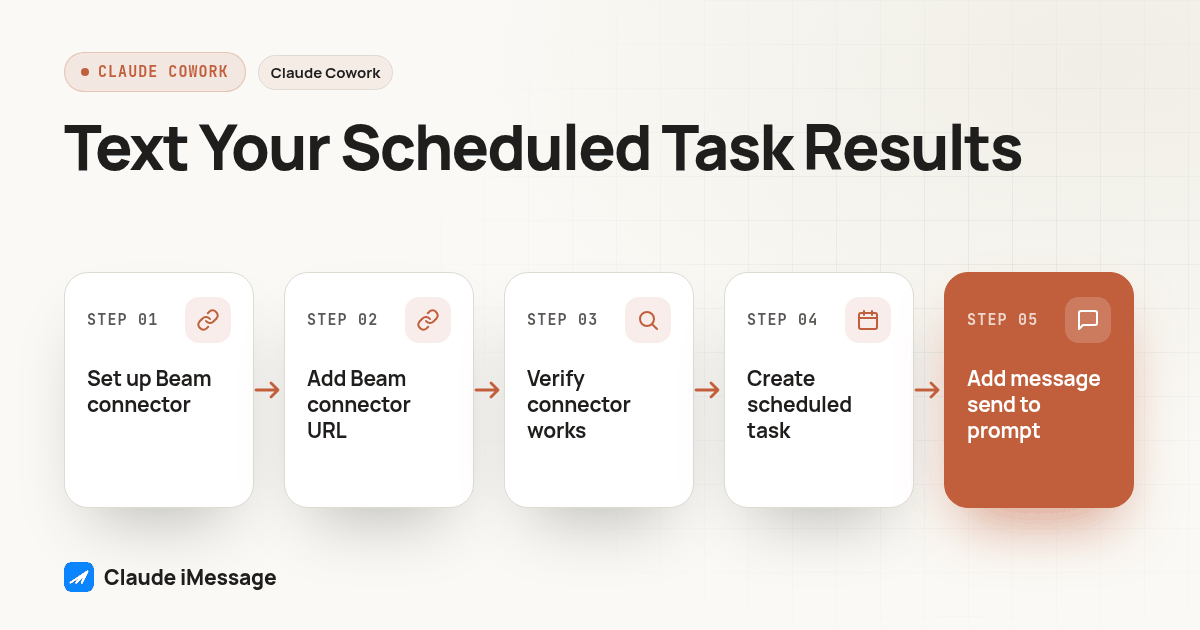
How Do You Set Up A Scheduled Task That Texts Its Own Briefing?
- Finish the base connector setup if you have not already: in Beam, open Settings, then Developer access, then MCP and API, and create a connection with send permission turned on, not just the default read and train permissions.
- In Cowork, open Customize, then Connectors, then Add custom connector, point it at
https://beam.aisync.link/mcp, choose no sign in authentication, and add a Request headers entry namedauthorizationwith the valueBearerfollowed by your token. - Open a new chat, turn the Beam connector on from the connectors menu, and ask it to call the workspace read tool to confirm it reached the right workspace before building on top of it.
- Open the Scheduled list in the sidebar and create a new scheduled task, either by describing it to Claude in plain language or by filling in the manual fields yourself.
- Write the prompt so the last line is a direct send instruction, not a request to show you a draft, and name the destination explicitly rather than assuming Claude will guess who the briefing is for.
- Set the task's approval mode so the send step can run without pausing for a confirmation nobody will be there to give.
- Pick the cadence: hourly, daily, weekly, weekdays or a manual trigger, matching how often the briefing needs to change.
- Run the task once immediately using the scheduler's manual trigger, rather than waiting for its real scheduled time, so you catch any problem while you are still watching.
What Should The Scheduled Task's Prompt Actually Say?
A prompt that works in a live chat often fails as a scheduled task simply because it never tells Claude what to do with the finished result. Use something close to this as a starting template, then adjust the first line to whatever the briefing actually covers:
Compile a short briefing covering [the specific thing: overnight support tickets,
yesterday's new leads, today's calendar, etc]. Keep it under 150 words, plain text,
no headers or markdown formatting. When it is finished, call the message tool to
send it to [destination], with the briefing text as the message body. Do not stop
to show me a draft first; send it directly as the final step of this task.
Three details in that template carry the actual weight: "no headers or markdown formatting" keeps the text readable on a phone screen instead of arriving full of asterisks and pound signs, "do not stop to show me a draft first" keeps the task from stalling on an approval nobody is awake to give, and naming the destination explicitly, rather than writing "send it to me," removes any ambiguity about which saved number the task should use.
What Should You Test Before You Trust This Running Unattended?
- Trigger the task manually right after building it, instead of waiting for its first real scheduled run.
- Open the Scheduled list and confirm that run shows as completed, not paused on a permission prompt.
- Open Beam's own conversation log for the destination number and confirm a message exists there with a timestamp matching the run.
- Check that message's recorded status a few minutes later; a queued status only means Beam accepted the request, not that it reached a phone.
- Let the task fire once on its real schedule, fully unattended, then repeat steps 3 and 4 the next morning before telling anyone else this is ready.
- Only after an unattended run checks out should you hand the destination number to a teammate or widen who relies on it.
The step people skip most often is the second to last one: checking the morning after an unattended run, not just the first manual trigger. A task that works perfectly while you watch it run can still go quiet on its first real unattended morning, usually because an approval setting that looked fine during testing reverts, or because the destination was a number you have since changed.
What Happens If The Connector Or Approval Mode Isn't Set Right?
Two failure modes show up far more than any others, and both look identical from the outside: the briefing never arrives. The first is a connector only turned on for the chat session you built it in, not the scheduled task itself, since Cowork's connectors are enabled per conversation and a scheduled run is its own session. The second is an approval mode still set to confirm every tool call, so the send step sits waiting for a yes that never comes, and the run eventually times out with nothing sent. Neither throws an error you will notice unless you go looking, which is why the test procedure above checks Beam's own conversation log instead of trusting a clean looking run inside Cowork: a completed task and a sent text are two different claims. If you also rely on a separate connection, like Claude Code's bearer header setup, remember that token's 60 requests per minute ceiling is shared across every client using it, so an hourly task sharing a token with another tool can fail for a reason that has nothing to do with the task itself.
Does This Work For A Team, Not Just One Person?
A single scheduled task texts a single number unless you write the prompt to do more. The message tool takes one recipient per call, so reaching three people means either three separate scheduled tasks, each pointed at a different saved number, or one task whose prompt loops the send step across a short list you maintain yourself. Neither approach is a broadcast feature Cowork or Beam turns on; it is plain prompt writing on top of a connector built to send one message at a time.
For the complete tool catalog behind that connector, our iMessage MCP server guide goes deeper than the single scheduled task covered here. If the overnight stall described above sounds familiar from a different Claude surface, our guide to getting Claude Code to text you when a task finishes covers the same problem solved through a hook instead of a scheduled task's prompt. Beam's own iMessage API overview covers the full tool set behind that one message_send call.
Screenshot: the Cowork Scheduled list showing one task named "Morning briefing," its last run marked completed, next to a phone screen showing the same briefing text arriving in a Messages thread at the same timestamp.
Before you connect
What do teams ask before they connect?
How long does it take to turn a Cowork scheduled task into a text briefing?
Connecting Beam as a custom connector takes a few minutes if you have not done it already. Writing a scheduled task prompt that ends with an explicit send instruction takes about as long as drafting the prompt itself. Most of the real time goes to testing: running the task once by hand and checking Beam's own conversation log before trusting the unattended schedule.
Does this work if my laptop or the Claude Desktop app is closed when the scheduled task runs?
Yes, and that is the entire point. Scheduled tasks run on Anthropic's servers on their own cadence, not on your machine, so a task firing at 6 a.m. does not need your laptop open or your desktop app running. The text itself also does not depend on your phone being on or an app being open, since it lands in the Messages thread like any other text.
What happens if I forget to set the task's approval mode correctly?
The task stalls. If the scheduled run reaches the message send step and the connector is still set to ask for approval on every tool call, it sits there waiting for a yes nobody is present to give at that hour, and no text goes out. Set the approval behavior for that specific scheduled task before you trust it to run unattended, not after the first missed morning briefing.
Does sending an automated briefing by text require A2P 10DLC registration?
It depends on the channel, not on the fact that an agent triggered it. Beam's iMessage and RCS delivery does not go through the carrier A2P 10DLC registration process that governs local SMS numbers. SMS fallback, used when a recipient's device or carrier does not support RCS, stays subject to the applicable carrier A2P rules, the same as any other text from that number.
Can a whole team receive the same scheduled briefing, or just me?
The message_send tool accepts one recipient number per call, so a task written to text a single number only reaches that one thread. A task prompt that loops the same send step across a short list of saved numbers can reach a few teammates, but that list lives in the prompt you write, not in a broadcast setting Cowork or Beam turns on for you.
Keep exploring
Which guides go deeper?
Where do these facts come from?
Checked October 2026.