claude cowork text message
By Beam team · Updated
Can Claude Cowork Send Text Messages? Connect It to Beam
Claude Cowork can send and receive real texts, but only after you add Beam as a custom connector over remote MCP, using a Bearer token created in Beam Settings rather than Cowork's own OAuth sign-in flow. That is a different wiring path from the local stdio bridge older Claude Desktop guides describe, and the same 60-requests-a-minute ceiling applies to Cowork's calls as to any other client using that token.
Beam is an independent messaging platform, not an Anthropic or Apple product.
What Is Claude Cowork, And How Is It Different From Claude Desktop?
Someone on a team that just got access to Claude Cowork asks us this almost every week now: can it actually text a customer, or is it another AI tool that only drafts a message and leaves a human to press send. The honest answer is that Cowork itself has no messaging feature built in. What it has is the same remote MCP connector system as Claude.ai and Claude Desktop, and once you point that at a maintained texting platform that owns a real phone line, Cowork can read a conversation, draft a reply, and send it for real.
Beam is an independent messaging platform built for business texting over iMessage, RCS and SMS fallback. It is not an Anthropic product and not an Apple product, and nothing below changes that; Cowork is simply one more client that can reach Beam's workspace tools once it is connected correctly.
Cowork is Anthropic's newer agentic work surface, currently a research preview reachable through Claude Desktop on macOS for Max and Pro subscribers, with Windows support planned. It is built on the same underlying architecture as Claude Code, which is why it can work across a mounted local folder, run shell commands, and chain several steps together without you re-prompting it after each one. Anthropic's own support documentation lists Cowork as its own named surface, alongside Claude and Claude Desktop, when it describes which products support adding a custom connector over remote MCP (support.claude.com: use connectors to extend Claude's capabilities).
That distinction matters for anyone who already read a guide to Claude Desktop and Beam. Plain Claude Desktop, the one most people already have open, has historically reached Beam through a small local script you run yourself, described in our Claude Desktop MCP bridge guide. Cowork sits closer to Claude.ai's connector model: a URL you add in settings, with credentials Anthropic's servers store and send on your behalf, not a script that lives on your own machine.
Can Claude Cowork Actually Send And Receive Real Texts?
Yes, once it is connected to a workspace that owns the actual sending infrastructure. Cowork cannot originate a text message on its own, the same way Claude Desktop or Claude.ai cannot either; none of Anthropic's clients ship with a phone line attached. What changes the answer from "draft only" to "actually sent" is a connector pointed at a platform like Beam, which supplies the business number, the carrier relationship, and the tools that do the sending and reading.
Once that connector exists, Cowork can call the same workspace tools any other connected client can: read a conversation's history, check which assigned numbers are reachable over iMessage versus falling back to SMS, draft a reply, and, with the right permission turned on, actually send it. That last part is worth repeating plainly, because it is the question underneath most of these searches: a correctly configured Cowork connection sends a message that lands on a real phone, not a preview Claude describes back to you in the chat.
Why Does Cowork Need Beam's Remote MCP Server Instead Of The Local Bridge?
Here is the part that trips people up, and it comes down to where the code actually runs. Anthropic's documentation on adding a connector that is not in its directory states plainly that a connector added by URL reaches a server over the internet, while a desktop extension runs locally on your own device instead (claude.com: add a connector that isn't in the directory). Cowork's custom connector dialog is the URL path, which means the call to Beam travels from Anthropic's infrastructure to Beam's public endpoint, not from whatever sandboxed folder Cowork happens to be working in on your laptop that afternoon.
A local stdio script, the kind our Claude Desktop bridge guide walks through, depends on a process running on your own computer with Node.js installed and a file path that has to be exactly right. That approach fits a desktop app reading its own local configuration file. It does not fit a client whose custom connectors are designed to call out to a public URL instead, which is exactly the model Cowork inherited from Claude.ai rather than from the older desktop bridge pattern. Trying to wire the stdio bridge into Cowork is solving a problem Cowork's connector system was not built to need solved that way.
How Do You Connect Claude Cowork To Beam, Step By Step?
- In Beam, open Settings, then Developer access, then MCP & API. Create a connection, name it something recognizable like "Cowork", and choose only the permissions this particular workflow needs. Read and train are selected by default; sending, publishing, automation and booking each require an explicit toggle.
- Click Create connection token and copy it immediately. It is shown once, and it cannot be displayed again after you leave that screen.
- In Cowork, open Customize, then Connectors, then Add custom connector. Give it a name and enter the server URL,
https://beam.aisync.link/mcp. - For authentication, choose No sign-in. Beam issues a Bearer token, not an OAuth flow, so the OAuth modes do not apply here.
- Open the Request headers section and add a header named
authorization. For the value, type the wordBearer, then a single space, then your token, exactly as shown; Anthropic's own documentation is specific that the scheme has to be included in the value you type, since Claude sends the header exactly as entered. - Mark that header Required, so the connection fails loudly instead of silently if the token value is ever missing.
- Save the connector, then open a new chat and turn it on for that conversation from the + menu's Connectors list.
- Before anything else, ask Cowork to call the workspace read tool and tell you the workspace name without changing anything, and confirm that name matches the client or business you meant to connect.
If step 5's Request headers section is nowhere to be found, stop there. Anthropic's documentation states this feature is in beta and available to a limited set of organizations, and no setting on your side turns it on early. Our bearer token connector guide covers that exact gap for Claude.ai in more depth, since Cowork's dialog follows the identical rollout.
Screenshot: the Cowork Add custom connector panel with the server URL field filled in, the No sign-in authentication option selected, and the Request headers section expanded showing an authorization header name with its value hidden behind dots.
How Does Cowork's Connector Compare To Claude Desktop, Claude Code And Claude.ai?
| Cowork (custom connector) | Claude Desktop (local bridge) | Claude Code (CLI) | Claude.ai (custom connector) | |
|---|---|---|---|---|
| Where the call to Beam originates | Anthropic's cloud, via the connector URL | A local Node process on your machine | Your terminal session | Anthropic's cloud, via the connector URL |
| Credential | Bearer token in a Request header | BEAM_TOKEN in a config file's env block |
Bearer token in a registered HTTP header | Bearer token in a Request header |
| Setup artifact | One URL plus one header, in settings | A downloaded script and one JSON file | One claude mcp add command |
One URL plus one header, in settings |
| Gated by the Request headers beta | Yes | No, this path does not use that dialog | No, registered directly on the command line | Yes |
The pattern worth noticing is that Cowork and Claude.ai share one real wiring path, while Claude Desktop's older bridge and Claude Code's CLI registration are two separate things entirely, even though all four end up calling the same Beam workspace with the same kind of token.
What Can Cowork Actually Do Once It's Connected?
What a connected Cowork session can actually touch depends entirely on the permissions you picked when you created the token in step 1, not on anything Cowork decides for itself.
- Read permission covers
workspace_read,assistant_read,contacts_list,conversation_read,numbers_list,drafts_list,calendars_listandcalendar_slots. This is what lets Cowork list recent conversations, pull up a contact's history, and check which of your assigned numbers are iMessage-enabled versus SMS-only throughnumbers_list, all without being able to change anything. - Train permission adds
draft_createandassistant_preview, for shaping the business's automated assistant without publishing changes live. - Send permission adds
message_send, the tool that puts a real text on a real phone. This is the one to add last, after you have verified the workspace and tested reads. - Publish, automation and book permissions each add one further tool:
draft_publish,conversation_pause, andappointment_book, respectively.
A token created with only read and train access cannot send anything no matter what Cowork is asked to do, since message_send simply is not on the list of tools it can call. That separation is worth treating as a real safety boundary, not a formality: verify a connection using read-only access first, and only add send once you trust what you are looking at.
Where Does The 60-Requests-A-Minute Limit Show Up?
Beam's developer access documentation states the limit plainly: 60 requests per minute, counted per Bearer token, regardless of which client is making the call. That applies to Cowork exactly as it applies to Claude Code, Codex, or a custom backend calling Beam's REST endpoints directly, because the ceiling is attached to the token, not to the client software sending the request.
A single Cowork turn that reads a conversation, checks the contact list, and sends a reply is already three calls before it writes a word back to you. Run that pattern across several active conversations inside one minute and a shared token will start failing, not because Cowork is misbehaving but because the budget is genuinely shared. If you expect Cowork to manage more than a handful of conversations at once, give it a connection token scoped to that workflow alone rather than reusing one already shared with a nightly automation job or another client.
What Should You Test Before You Trust Cowork With A Real Conversation?
Keep a short list and actually run through it, rather than trusting one clean-looking exchange:
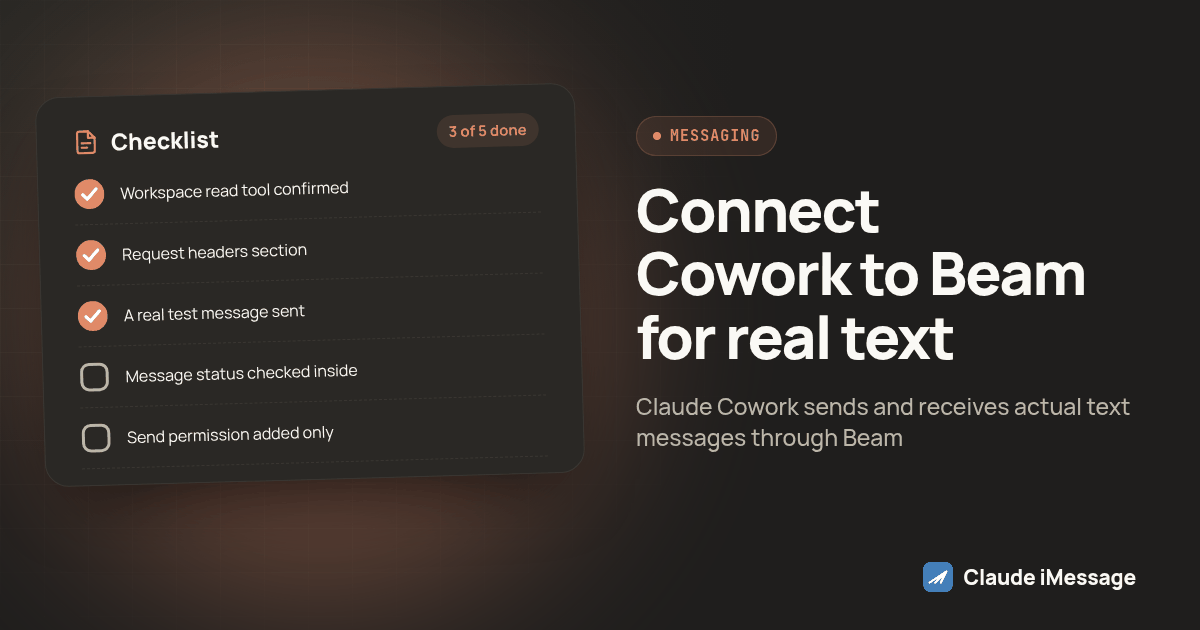
Before calling a Cowork + Beam connection ready:
- Workspace read tool confirmed the intended workspace name, not a different one
- Request headers section was present and the header saved without an error
- A real test message sent to a contact you control, from this exact connector
- Message status checked inside Beam, not just a success reply inside Cowork
- Send permission added only after read-only checks passed
- Token scoped to this workflow, not shared with another client or job
The step people skip most often is the last line on Cowork's side: asking the agent to describe what it would send instead of actually sending it. A queued or accepted status in Beam is not the same thing as a message that reached a phone, so check the real delivery status before telling anyone on your team this connection is ready for a real customer.
If the workflow you are building also needs Cowork or another Claude client to place real phone calls, not just text, that is a separate connection on a separate platform. RizzDial documents the equivalent MCP setup for voice agents in its guide to adding phone calls to an AI agent over MCP, which follows a similar permission-first pattern before any call goes out.
For the complete tool catalog, every permission, and the full reasoning behind read-first testing, our iMessage MCP server guide goes deeper than the single connector covered here.
Before you connect
What do teams ask before they connect?
Does Claude Cowork need its own separate Beam connection, or can it reuse a token I already made for Claude Desktop?
It can reuse an existing token, but we would not recommend it for anything beyond a quick test. A shared token means Cowork and your other client draw from the same 60 requests a minute, and a busy agent session in one can quietly throttle the other. Create a token scoped to Cowork specifically, with only the permissions that workflow needs.
What does connecting Cowork to Beam actually cost?
Nothing extra on Beam's side beyond the plan and assigned line your business already needs for live sending. Beam does not publish per-seat pricing on its site, so talk to the Beam team directly about your plan once you know which workflow you are building. Your Claude plan is billed separately by Anthropic and is not affected by adding a connector.
How long does it take to get Cowork actually sending a real text through Beam?
Creating the Beam token and filling in the Add custom connector dialog takes a few minutes once you know the right fields. Budget real time beyond that for the part people skip: confirming the connected workspace, sending one test message to a contact you control, and checking its recorded status inside Beam rather than trusting a reply inside the chat.
My Add custom connector dialog in Cowork does not show a Request headers section. Is something broken?
No, that is an access rollout, not a bug. Anthropic documents request header authentication as a beta feature available to a limited set of organizations, and if the section is missing your organization does not have it yet. There is no setting on your end that adds it, and Beam only issues Bearer tokens, so without that section a Cowork connection to Beam has nothing to authenticate with.
Is connecting Cowork to Beam the same setup as the Claude Desktop guide I already read?
No, and mixing them up is an easy mistake. One older Claude Desktop path runs a small script on your own computer and reads a local config file. Cowork's connector is a remote MCP connection that Anthropic's cloud calls over the internet using a URL and a stored credential, closer to how Claude.ai adds a connector than to that local script.
Keep exploring
Which guides go deeper?
Where do these facts come from?
Checked October 2026.