claude custom connector bearer token
By Beam team · Updated
Claude Custom Connector Bearer Token: Why It's Missing
Claude.ai's custom connector dialog has a No sign-in mode built exactly for a Bearer token, hidden inside a Request headers section that Claude's own documentation calls beta and limited to a set of organizations. If your dialog does not show that section, no toggle fixes it today; use the already-documented Claude Desktop bridge instead. If it does show up, this guide walks through wiring Beam's remote MCP server into it with the exact header name and value Claude expects.
Beam is an independent messaging platform, not an Anthropic or Apple product.
What Exactly Does Claude.ai Mean By "Custom Connector"?
We get the same support message often enough to recognize it instantly: someone opens Claude.ai, clicks Add custom connector, and expects a plain field for an API key, the same way they would add one to almost any other tool. What they find instead is a sign-in screen, or a vague mention of OAuth, with no obvious place to paste a token at all. That gap is not a bug on their end, and it is not Beam's server rejecting anything. It is a beta feature that Anthropic has not turned on for every account yet, buried one click deeper than most people think to look.
A custom connector in Claude.ai is a remote MCP server you point Claude at by URL, so it can call that server's tools during a conversation. Individual plans, Free, Pro and Max, add one from Customize, then Connectors, then Add custom connector. Team and Enterprise plans manage the same thing from Organization Settings, then Connectors, since those connections apply across a workspace rather than one person's account (support.claude.com: use connectors to extend Claude's capabilities). Either path ends at the same dialog: a server URL field, and a choice of how Claude should authenticate with it.
That authentication choice is where the confusion starts. Most people assume "connector" means "paste an API key somewhere," because that is how connecting to an outside service usually works everywhere else. Claude.ai's dialog is built around a different assumption: that a remote MCP server mostly wants to verify a human, not just check a string.
Which Three Authentication Modes Does the Dialog Actually Offer?
Claude's own documentation lists exactly three authentication modes for a remote MCP server, and only one of them behaves like a traditional API key (claude.com: connect to remote MCP servers).
| Mode | What it requires from the server | When Claude sends the credential | Fits a Bearer token server like Beam? |
|---|---|---|---|
| Sign in now | An OAuth authorization screen the server hosts | Immediately, before the connector finishes setup | No |
| Sign in when needed | The same OAuth flow, deferred | The first time a tool call actually needs it | No |
| No sign-in | A fixed credential you type once, sent unchanged | On every single request, with no renegotiation | Yes |
The first two modes assume the remote server itself can run an OAuth authorization flow and hand Claude a session, the way signing into a Google or Slack connector works. The third mode skips that entirely. Pick No sign-in, and the dialog opens a Request headers section where you type a header name and a value by hand, exactly once, and Claude attaches that same header to every call from then on.
Why Is the Request Headers Section Missing From Your Dialog?
Claude's documentation is direct about this, stating that request header authentication "is in beta and available to a limited set of organizations," and that if the Request headers section is absent from your Add custom connector dialog, "your organization doesn't have access yet" (claude.com: connect to remote MCP servers). That single sentence explains almost every version of this question we see: two builders compare screenshots of the same dialog, one has a Request headers field and the other has only a sign-in button, and neither one did anything wrong.
This is also why a walkthrough written for one account can read as flatly wrong on another. The feature did not change between sessions; the rollout did. Beta access is granted per organization, not through a setting you can flip yourself, so refreshing the page or trying a different browser will not surface a section your organization has not been given yet.
How Do You Check Whether Your Organization Already Has Access?
Run this check before assuming either outcome.
- Open Claude.ai and go to Customize, then Connectors (Team and Enterprise accounts should also check Organization Settings, then Connectors, since beta access can be granted at the organization level even if an individual account does not see it elsewhere).
- Click Add custom connector and enter any placeholder URL, just to see the dialog's authentication options; you can cancel before saving.
- Look for three choices: Sign in now, Sign in when needed, and No sign-in.
- Select No sign-in. If a Request headers section opens below it with fields for a header name and value, your organization has beta access.
- If No sign-in offers no Request headers section at all, or the option itself is missing, your organization does not have access yet, and nothing in your account settings changes that today.
- On a Team or Enterprise plan, ask whoever administers your workspace to check Organization Settings directly, since what one member sees is not always what the organization was granted.
If step five is where you land, skip ahead to the fallback section below rather than retrying the same dialog on a different device.
Why Does Beam Need the No Sign-In Path Instead of OAuth?
Beam's remote MCP server authenticates with a Bearer token in an HTTP header, the same credential style Claude Code uses when you register Beam's server with a single command and a token stored in your terminal environment. Beam does not run an OAuth authorization screen for this server, so choosing Sign in now or Sign in when needed has nothing to connect to. The connection would simply fail at the point Claude tries to start an OAuth handshake Beam's server was never built to answer.
No sign-in with Request headers matches what Beam's server actually expects: one static credential, sent the same way on every request, never renegotiated. That is also why the beta gating matters so much for a Beam connection specifically. If your organization has not been given the Request headers section yet, neither OAuth mode in that dialog will work for Beam's server either, since both require something Beam does not provide.
How Do You Add Beam's Bearer Token to a Custom Connector, Step By Step?
This assumes your organization already has the Request headers section available, confirmed using the check above.
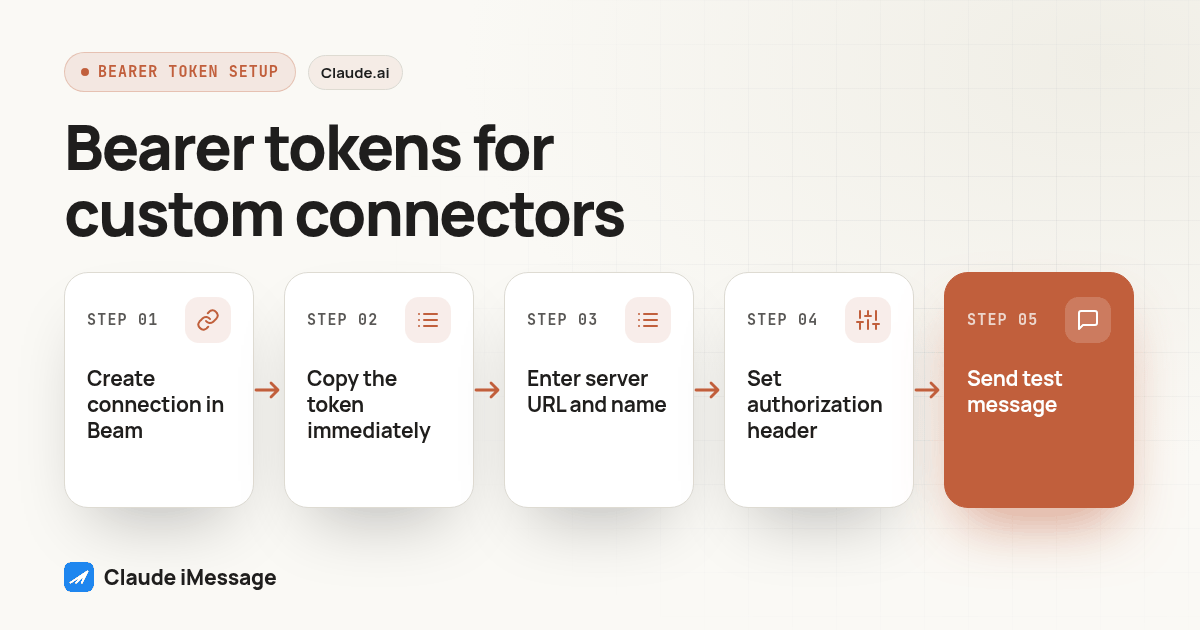
- In Beam, open Settings, then Developer access, then MCP & API. Create a new connection, name it, and leave read and train selected, adding sending only if you plan to use it right away.
- Copy the token the moment it appears. Beam shows it once and it expires after 90 days, so paste it somewhere private before doing anything else in this guide.
- In Claude.ai, open Customize, then Connectors (or Organization Settings, then Connectors, on Team and Enterprise), and click Add custom connector.
- Enter the server URL
https://beam.aisync.link/mcpand give the connector a name you will recognize later. - Under authentication, choose No sign-in, then open the Request headers section that appears beneath it.
- Set the header name to
authorization. HTTP header names are not case sensitive, but typing it the way Beam's own documented Claude Code command does keeps your setup consistent with that guide. - Set the header value to
Bearer <token>, replacing<token>with the value you copied in step two, keeping the word Bearer, exactly one space, and no surrounding quotation marks. Claude sends this value to the server exactly as typed, so an extra space or a missing word breaks the request silently rather than with a clear error. - Save the connector, then open it again and confirm it shows as connected with a list of Beam's tools, not just a generic success message.
- Before anything else, ask Claude to call the workspace read tool and tell you which Beam workspace it connected to. Confirm that name matches what you expected; a token belongs to one workspace and cannot switch to another if the wrong one got connected.
- Send one real test message to a contact you control, then check that message's actual status inside Beam rather than trusting a success reply inside the chat window.
Screenshot: the Claude.ai Add custom connector dialog with No sign-in selected, the Request headers section expanded below it, showing a header name field reading "authorization" and a value field reading "Bearer" followed by a masked token string.
What Should You Test Before You Trust the Connection?
Keep a short list and run through it rather than stopping at a green connected indicator.
Before calling a Claude.ai custom connector to Beam ready:
- The Request headers section was actually confirmed present, not assumed from an older screenshot
- The header name reads authorization and the value reads Bearer plus one space plus the token
- The workspace read tool reported the intended workspace by name, not a different one
- A real test message was sent to a contact you control, from this exact connector
- Message status was checked inside Beam, not just a success reply inside Claude
A connector showing as connected only proves Claude can reach the server and see its tools. It does not prove the header value was typed correctly, since a wrong value often produces the same visible "connected" state until the first tool call actually runs. Treat the workspace check and the real test message as separate, required steps, not a formality after the dialog turns green.
What Do You Do If Your Organization Doesn't Have Request Headers Access Yet?
Nothing in this guide gets you that beta section early. If step five of the access check above is where you landed, the path that works today without waiting on a rollout is Beam's documented Claude Desktop bridge, a small local process you add to claude_desktop_config.json instead of the web dialog. Our Claude Desktop MCP bridge guide covers the exact file location, the JSON shape, and the same workspace check and test message described above, adapted to that setup.
This is not a downgrade so much as a different front door to the same Beam workspace. Both paths end at the same permissions model: read and train access kept separate from sending, one workspace per connection token, and a real test message before you trust either one with a live conversation. If your organization later gets Request headers access, nothing about an existing Desktop bridge breaks, and you can add the web connector as a second, independent connection whenever it becomes available.
How Does the Web Custom Connector Compare to Claude Code and Claude Desktop?
| Web custom connector (this guide) | Claude Code | Claude Desktop | |
|---|---|---|---|
| Where the connection lives | Brokered through your Claude account | A terminal command you run once | A local file, claude_desktop_config.json |
| Credential for Beam | Bearer token typed into Request headers | Bearer token passed with --header "Authorization: Bearer ..." |
BEAM_TOKEN in the config's env block |
| Availability today | Beta, limited to organizations granted access | Available now to anyone running Claude Code | Available now to anyone running Claude Desktop |
| Setup artifact | A saved connector entry in your account | One registration command | A downloaded bridge script plus one JSON file |
Claude Code's bearer header setup already works the same way for everyone, worth knowing if a colleague's web connector works while yours does not: they may just be using a different client, not a different account tier. See our Claude Code iMessage setup guide for that command and permission walkthrough. If connecting Claude to a real phone number is new to you rather than a specific authentication question, start with our overview of Claude and iMessage through Beam instead.
Beam is an independent messaging platform, not a feature built by Anthropic or Apple, so none of the beta gating described here is something Beam controls or can turn on for you. If a connector that used to work suddenly stops, the cause is more often a token or session problem than this beta rollout; our guide to fixing a Claude iMessage connector that stopped working walks through those failure points separately. For the full tool catalog and permission model once a connection is live, whichever path got you there, our iMessage MCP server guide covers what read, train, publish, automation, sending and booking access each actually allow. And if you are building a server side integration instead of connecting an agent client at all, Beam's own iMessage API guide documents the HTTP endpoints directly, without any of the connector dialog covered above.
Before you connect
What do teams ask before they connect?
How long does it take to find out if my organization has Request headers access?
A few minutes. Open Customize, then Connectors, then Add custom connector, or Organization Settings, then Connectors, on a Team or Enterprise plan, and look for a Request headers section inside the No sign-in option. If it is not there, no setting inside Claude.ai turns it on for you. Your organization has not been given beta access yet, and the honest next step is the Claude Desktop bridge covered later in this guide, not more clicking around the dialog.
Does picking No sign-in instead of OAuth make my Claude.ai account less secure?
No. The two mechanisms protect different things. OAuth protects a connector server that supports many separate users signing in on their own, by brokering a session through your Claude account. No sign-in with Request headers sends one fixed credential on every request instead, which fits a server like Beam's that issues one scoped workspace token per connection rather than individual user logins. Treat that token the way you would treat any other credential: private, scoped to what it needs to do, and easy to revoke.
What happens if I type the header name or the Bearer value wrong?
The connector usually still shows as connected, because saving a header is just saving text, not testing it against the server. The failure shows up the first time Claude actually calls a tool, as a generic authorization error rather than a message naming the exact header. Retype the header name as authorization, and check the value reads Bearer followed by a single space and then the token, with no quotation marks and no extra line breaks, before assuming the server itself is broken.
I already set up the Claude Desktop stdio bridge. Do I need to redo anything to also use the web custom connector?
No. The two connections share no configuration. The stdio bridge lives in claude_desktop_config.json on your machine and keeps working exactly as it did. A web custom connector is a separate connection brokered through your Claude account, using a new Beam token if you want one scoped differently. Running both at once just gives you two ways to reach the same Beam workspace, not a conflict to resolve.
Keep exploring
Which guides go deeper?
Where do these facts come from?
Checked October 2026.