claude desktop mcp bridge
By Beam team · Updated
Send Texts From Claude Desktop Using a Local MCP Bridge
Claude Desktop cannot send a real text out of the box, but it can once you add Beam's stdio bridge as an entry under mcpServers in claude_desktop_config.json (macOS: ~/Library/Application Support/Claude/, Windows: %APPDATA%\Claude\), restart the app, and confirm the connection in Manage connectors. This guide covers the exact JSON, the token permissions behind it, and the test you should run before trusting it with a real conversation.
Beam is an independent messaging platform, not an Anthropic or Apple product.
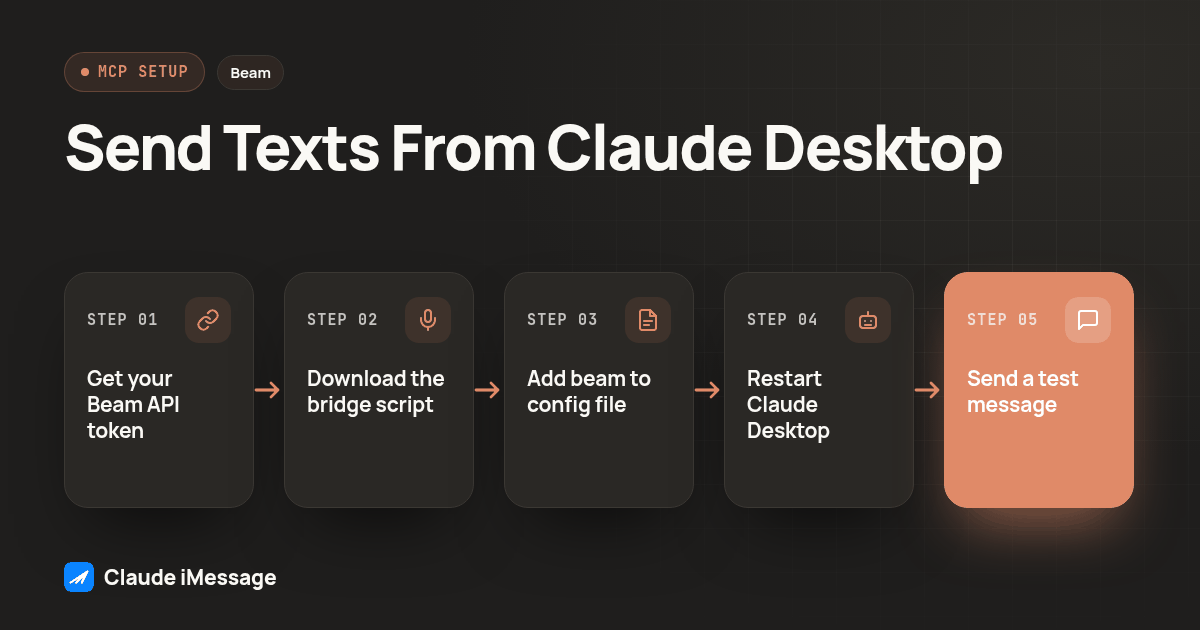
What Do You Need Before You Touch The Config File?
Someone reads that Claude can "text people" and goes looking for a toggle in Claude Desktop's settings, only to find nothing resembling a messaging feature. That's because the capability doesn't live in the app itself. It lives in a small local process you add through MCP, pointed at a maintained text platform that actually owns a phone line. We set this connection up often enough that we wrote down the exact file, the exact JSON shape, and the test we run before calling it done.
Two things have to exist before editing anything in Claude Desktop. The first is a Beam connection token with the right permissions. Open Beam Settings, then Developer access, then MCP & API, name the connection, and leave read and train selected while adding sending only if you intend to use it right away. Copy the token the moment it appears. It is shown once and expires after 90 days, so paste it somewhere private immediately rather than planning to come back for it later.
The second is Node.js 20 or newer on the machine running Claude Desktop, since Beam's bridge is a small script that runs locally and needs Node to execute. Confirm it with node --version in a terminal before you go any further. Then download Beam's stdio bridge script and save it somewhere you control, such as a dedicated folder outside your Downloads directory so it doesn't get cleaned up by accident. Note the full, absolute path to that file. You'll need it in the next step, and a relative path is one of the most common reasons this setup silently fails to connect.
Where Is claude_desktop_config.json, And What Goes Inside It?
Claude Desktop reads its local server list from one JSON file, and the file does not exist until you ask the app to create it. Open the Claude menu, choose Settings, open the Developer tab, and click Edit Config. That action creates the file if it is missing, or opens it if you already have one. The file lives at ~/Library/Application Support/Claude/claude_desktop_config.json on macOS and %APPDATA%\Claude\claude_desktop_config.json on Windows (modelcontextprotocol.io: connect to local MCP servers).
Inside that file, add a beam entry under mcpServers:
{
  "mcpServers": {
    "beam": {
      "command": "node",
      "args": ["/absolute/path/beam-mcp.mjs"],
      "env": { "BEAM_TOKEN": "YOUR_TOKEN" }
    }
  }
}
command and args tell Claude Desktop how to launch the bridge: run Node against the script at that exact path. env passes your Beam token into that process without putting it in the command line itself, where it could end up in shell history or a process list. Replace the placeholder path with the absolute path you noted earlier, and replace YOUR_TOKEN with the token you copied from Beam. If you already have other servers listed under mcpServers, add beam alongside them rather than replacing the whole block.
How Does This Compare To Claude Desktop's Other MCP Options?
| Local stdio bridge (this guide) | Bearer header HTTP | Hosted OAuth connector | |
|---|---|---|---|
| What runs on your machine | A small Node process reading claude_desktop_config.json |
Nothing; the client calls Beam's endpoint directly over HTTPS | Nothing; brokered through your Claude account |
| Who uses this path for Beam | Claude Desktop, and other stdio capable desktop clients | Claude Code, Codex, Cursor | Not supported for Beam today |
| Credential | BEAM_TOKEN in the config's env block |
Bearer token in an authorization header | Account sign in, not a copied token |
| Setup artifact | A downloaded script plus one JSON file | One registration command | A connector authorization screen |
Desktop apps that support MCP tend to need the stdio path specifically, because they are not running inside a terminal where an environment variable and a single command line are enough. If you later also use Claude Code for the same Beam workspace, that client uses the bearer header path instead and does not need this bridge script at all; our Claude Code setup guide covers that command.
How Do You Actually Wire This Together, Step By Step?
- In Beam, open Settings, then Developer access, then MCP & API. Create a connection, name it, and copy the token immediately since it cannot be shown again.
- Confirm Node.js 20 or newer is installed, then download Beam's stdio bridge script to a folder you control and note its absolute path.
- In Claude Desktop, open the Claude menu, choose Settings, open the Developer tab, and click Edit Config to open or create
claude_desktop_config.json. - Add the
beamentry undermcpServersusing the JSON shown above, with your actual path and token filled in. Save the file. - Fully quit Claude Desktop, not just close its window, then reopen it so the new configuration loads.
- Click the "Add files, connectors, and more" control in the chat box, open Connectors, then Manage connectors, and confirm
beamappears with a list of tools. - Ask Claude to call the workspace read tool and report back the workspace name before doing anything else, so you catch a wrong workspace before you send anything.
- Send one real test message to a contact you control, then check that message's actual status inside Beam rather than trusting a success reply inside the chat.
How Do You Know The Connection Actually Worked?
A server showing up in Manage connectors proves the process started and Claude Desktop can see its tools. It does not prove the token points at the workspace you meant, and it does not prove a message will reach a real phone. Those are two separate checks, and skipping the second one is how a demo looks finished while the actual business line is still untouched.
Start with the workspace check from step seven above and read back the result instead of assuming it matches. A connection token belongs to one workspace; it cannot switch to another one if you picked the wrong name during setup. Once that is confirmed, send a real message rather than asking Claude to describe what it would send, and watch for the message's recorded status in Beam. An accepted or queued result is not the same as a message that reached a phone, so check the actual status before telling anyone this is ready.
What Should You Test Before You Hand This To Anyone Else?
Keep a short list and actually run through it rather than trusting one clean message:
Before calling a Claude Desktop + Beam connection ready:
- Workspace read tool confirmed the intended workspace name, not a different one
- A real test message sent to a contact you control, from this exact setup
- Message status checked inside Beam, not just a success reply inside Claude
- Claude Desktop fully restarted at least once after the config change, then tested again
- The absolute path in claude_desktop_config.json checked carefully against where the script actually lives on disk
Restarting and testing again matters more than it sounds. A connection that works right after you save the config can still fail after the next restart if the path was typed correctly but points at a file that later got moved or renamed.
What Breaks This, And How Do You Fix It Fast?
Most failures trace back to one of three places. A wrong or relative path in args is the most common: Claude Desktop will try to run the command and simply get nothing back, so the connector either never appears or appears with no tools. A missing or expired token is the second: the bridge starts fine, but every call to Beam fails, and the fix is generating a fresh token in Beam and updating the env value. The third is forgetting to fully quit Claude Desktop after editing the file, since the running app does not reread its configuration on its own.
If none of those explain it, check the logs. Claude Desktop writes connector output to ~/Library/Logs/Claude on macOS and %APPDATA%\Claude\logs on Windows, with a file named for your server that holds whatever the bridge script printed before failing (modelcontextprotocol.io: connect to local MCP servers). That log usually names the exact problem rather than leaving you to guess between the three causes above.
Screenshot: the Claude Desktop Settings window with the Developer tab selected, the Edit Config button highlighted, next to a second panel showing the saved claude_desktop_config.json with a single "beam" entry under mcpServers, its args and env fields visible.
Is This The Same Thing As Claude's MCP Connector In The API?
No, and mixing the two up is an easy mistake to make since both involve the letters MCP. The API feature documented as the MCP connector lets a developer call remote MCP servers directly from the Messages API, without running any client at all, which is a server side integration pattern aimed at applications built on Claude's API (platform.claude.com: MCP connector). That is a different mechanism from what this guide covers: a local process that Claude Desktop itself launches on your machine, configured through one JSON file, with no API integration code of your own involved. If you are building a server side application instead of using the desktop app day to day, the API connector is the one to read about, not this one.
Do You Still Need A2P Registration Or Consent Rules?
Connecting Claude Desktop to Beam changes how a message gets written and sent, not the rules about who you are allowed to contact. Beam's iMessage and RCS channels avoid the carrier A2P 10DLC registration process, while SMS fallback, used when a recipient's device or carrier does not support RCS, stays subject to the applicable carrier A2P requirements. Whatever your business already does for consent and opt out requests still applies once Claude is the one drafting the reply. Treat an AI generated message the same way you would treat one a person typed, and keep a human able to step in when a contact asks to stop.
Beam is an independent messaging platform, not an Anthropic or Apple product, and this bridge is one of two documented ways to connect an AI client; see our overview of Claude and iMessage through Beam for the bearer header path and the fuller tool catalog. For the full permission model, rate limits and every tool the bridge can call once connected, our iMessage MCP server guide goes deeper than the single connection covered above. Beam's own iMessage API documentation is the right next stop if you later want a server side integration instead of a desktop client.
Before you connect
What do teams ask before they connect?
How long does this actually take to set up the first time?
Creating a Beam connection token and saving claude_desktop_config.json takes a few minutes once Node.js is installed. What takes longer is the part people skip: confirming the connected workspace is the right one, testing a message to a contact you control, and checking the real delivery status in Beam instead of trusting a reply inside Claude. Budget real time beyond the config edit for that full setup and test pass.
Should I use Claude Code instead of Claude Desktop for this?
They connect to Beam differently, and the choice depends on where you want the integration to live. Claude Code registers Beam's MCP server over bearer authenticated HTTP with one command and no downloaded script, which fits a developer already working in a terminal. Claude Desktop needs the local stdio bridge described here because it is a desktop app, not a terminal session. Use whichever client you already run day to day rather than installing a second one just for this.
Claude Desktop shows the connector icon but Beam isn't listed. What's wrong?
Check the three usual causes in order. First, the absolute path in the args array has to point to the exact location you saved the bridge script, not a relative path or a typo. Second, Claude Desktop has to be fully quit and reopened after you edit the config, not just closed and reopened from the dock. Third, Node.js has to actually be installed and reachable from the account Claude Desktop runs as. The mcp-server log file named for your connection will usually say which of the three it is.
Does connecting Claude Desktop this way require A2P 10DLC registration?
It depends on the channel a given message actually travels on. iMessage and RCS through Beam avoid the carrier A2P 10DLC registration process. SMS fallback, the path used when a recipient's phone or carrier does not support RCS, remains subject to the applicable carrier A2P requirements. Consent and opt out obligations apply no matter which channel carries a specific message, and connecting an MCP bridge does not change any of that.
Keep exploring
Which guides go deeper?
Where do these facts come from?
Checked October 2026.