claude connectors
By Beam team · Updated
Claude Connectors vs Custom Connectors for Sending Texts
Claude's pre-built Connectors cover general business apps with one-click OAuth, but none of them send a real text message today. To let Claude read and send iMessage through a business number, you add Beam as a Custom Connector by its server URL instead, with a credential a Team or Enterprise Owner enters once for the whole workspace.
Beam is an independent messaging platform, not an Anthropic or Apple product.
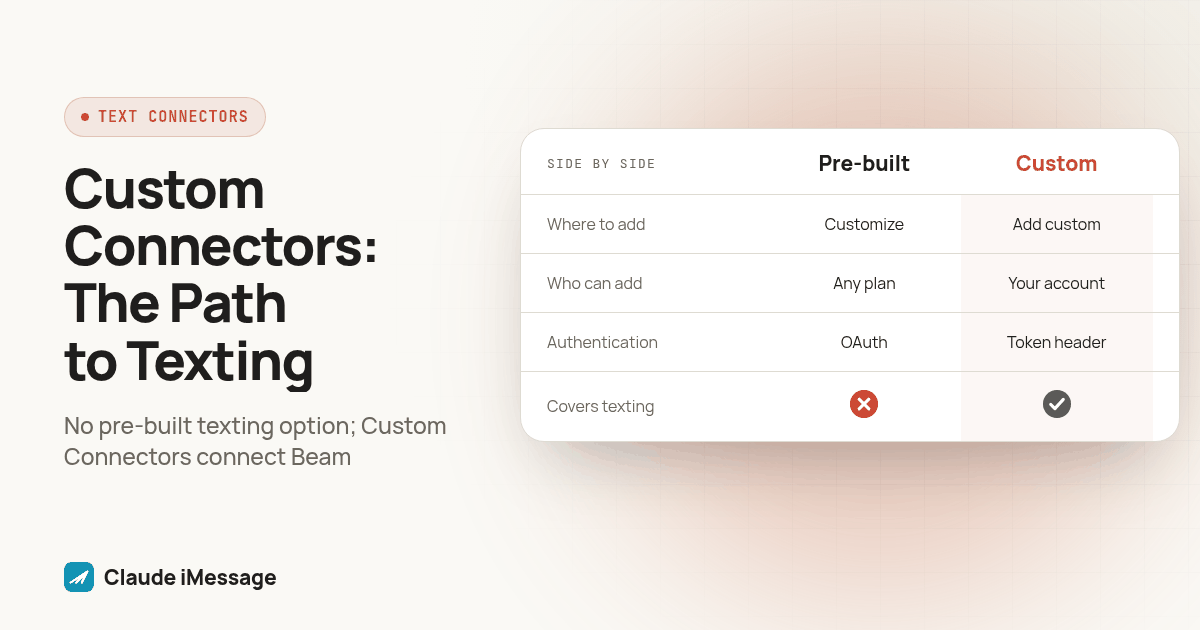
What's the Difference Between a Claude Connector and a Custom Connector?
We hear a version of the same question every week from agencies setting up their first Claude integration: someone opens Customize, then Connectors, expects a texting option sitting next to Slack and Google Drive, and doesn't find one. That isn't a bug in their account. It's the current shape of Claude's directory, and it's exactly why Custom Connectors exist as a second, separate path. Knowing which one applies to your situation before you start saves a round trip through a dialog that was never going to work for what you're trying to connect.
A connector, in Claude's own language, is any remote MCP server Claude can call during a conversation. The directory version is one Anthropic has reviewed and listed; you click it, grant access, and Claude signs you in through that service's own login screen, a process its support documentation describes as needing no coding at all (support.claude.com: use connectors to extend Claude's capabilities). A Custom Connector skips the directory entirely. You type the server's URL yourself, and Claude connects to it the same way it would connect to a directory listing, minus the review: "A connector by URL suits internet-hosted services and public APIs," per claude.com: add a connector that isn't in the directory.
Both end at the same place: a set of tools Claude can call mid-conversation. The gap is entirely about who built and vetted the server, and how Claude verifies who's allowed to use it.
When Does a Pre-Built Claude Connector Cover Texting?
Today, it doesn't. The directory's listed examples run toward general business software. Slack, Google Drive, Gmail, Google Calendar, GitHub, Microsoft 365 and Linear all appear as pre-built connectors in Claude's own documentation, and none of them put a message on a phone through a carrier-backed number. Slack's connector sends a message inside Slack. It has nothing to do with iMessage, RCS or SMS reaching an actual device.
That gap isn't an oversight anyone can fix by filing a support ticket. A directory listing exists because a vendor submitted it and Anthropic reviewed it, a process with its own verification tiers (claude.com: connector verification). Business texting through a dedicated number is a narrower category than Slack or Gmail, and it hasn't produced a general-purpose directory entry yet. Beam is an independent messaging platform, not a feature Anthropic or Apple built, and the absence of a directory listing doesn't change how Beam's own MCP server works. It only changes how Claude discovers it.
When Do You Actually Need a Custom Connector Instead?
Whenever the specific provider you want, a particular business number, a particular CRM, a particular texting platform, has no entry in Claude's directory, a Custom Connector is not a workaround. It's the documented, supported path for exactly this case. Anyone adding Claude to a workflow that depends on a provider outside the directory ends up here eventually, whether that's Beam for iMessage or some other internal tool a team built itself.
The iMessage MCP server guide covers the full tool catalog a connected Beam workspace exposes once you're in: reading conversations, training responses, publishing drafts, running automations, sending for real and booking. None of that changes based on which Claude surface you connect from. What changes is only the connection method, and for claude.ai specifically, that method is the Custom Connector dialog.
Picture a GoHighLevel agency that already has three sub-accounts on dedicated iMessage lines through Beam, and wants Claude to draft replies for the slowest-responding one first. There's no directory listing for "Beam iMessage" or for most CRM-specific texting setups, because a directory entry only exists once a vendor submits one and Anthropic reviews it. The agency's Owner adds Beam as a Custom Connector once, scopes it to read and train only while they build confidence in the drafts, and only turns on sending once a person has reviewed a week of suggested replies against what actually went out.
If you're instead weighing whether to build your own messaging backend rather than connect to one over MCP, our guide on building an iMessage API covers what that actually costs in uptime, maintenance and account risk before you commit engineering time to it.
How Does Setup Differ Between the Two Paths?
| Pre-built Connector | Custom Connector | |
|---|---|---|
| Where you add it | Customize, then Connectors (or Organization settings, then Connectors, on Team and Enterprise) | Same menu, choosing Add custom connector, or Add, then Custom, on Team and Enterprise |
| Who can add it | Any plan, though an Owner must enable connectors for the organization first on Team and Enterprise | Free, Pro and Max add to their own account, with Free limited to one; on Team and Enterprise, an Owner adds it for everyone |
| Authentication | OAuth through the vendor's own sign-in screen | Sign in now, Sign in when needed, or No sign-in with a Request headers section for a fixed credential |
| Setup artifact | A saved connection, no server URL to type | A server URL, plus for Beam, a connection token pasted into Request headers |
| Covers texting today | No provider listed | Yes, this is Beam's documented path |
Request header authentication, the mode Beam's server uses, is itself still in beta: "available to a limited set of organizations," with Owners whose organization lacks access never seeing that section at all (claude.com: authentication for connectors). If your Add custom connector dialog shows only Sign in now and Sign in when needed under Authentication, that beta gate, not a mistake in your own setup, is why.
How Do You Set Up a Custom Connector to Beam, Step by Step?
- In Beam, open Settings, then Developer access, then MCP and API, and create a connection with the permissions your workflow actually needs, leaving sending and booking off until you're ready to use them.
- Copy the token immediately. Beam shows it once, and it expires after 90 days.
- Decide who's adding the connector in Claude. On Free, Pro or Max, you add it to your own account under Customize, then Connectors. On Team or Enterprise, an Owner adds it once under Organization settings, then Connectors, so every member connects afterward with their own login.
- Click Add custom connector, enter Beam's server URL, and give the connection a name your team will recognize later.
- Under Authentication, choose No sign-in, then open the Request headers section that appears beneath it.
- Set the header name to authorization, and the value to the word Bearer, one space, then your token, exactly as Beam's own documentation shows it.
- Save the connector, then ask Claude to call the workspace read tool before anything else, and check the name it reports against the workspace you meant to connect.
- Send one real message to a contact you control, and check that message's actual status inside Beam rather than trusting a success reply inside the chat window.
For the exact dialog screens and the beta access check behind step five, our Custom Connector bearer token guide walks through each screen in order. If you work from a terminal instead of claude.ai, Claude Code authenticates to Beam with its own bearer header command, not this web dialog; see our Claude Code setup guide for that path.
Screenshot: the Claude.ai Add custom connector dialog with No sign-in selected, the Request headers section open beneath it, a header name field reading "authorization," and a masked token value beginning with "Bearer."
What Should You Test Before You Trust Either Path With Real Contacts?
A connector that shows as connected proves Claude can reach the server and list its tools. It proves nothing about whether the credential points at the right workspace, or whether a message will actually reach a phone. Run the workspace check from step seven above and read the result back instead of assuming it matches what you intended. A token belongs to one workspace, and it can't switch to another one if the wrong name got typed in during setup.
Then send a real test message, not a description of what Claude would send, to a contact you control. Check that message's recorded status inside Beam, since a queued or accepted result in the chat window isn't the same thing as a delivered text on a real device. Teams that skip this step tend to find out their setup was wrong during a live client conversation instead of during testing, which is a far more expensive place to learn it.
There's a third check worth running before you hand a connector to anyone else on the team: open the permissions you actually granted and read them back line by line, rather than trusting what you remember choosing during setup. A connection created months ago for a narrow testing task sometimes carries sending or booking access nobody meant to leave on once the project moved past the pilot stage. Revoking and recreating a connection costs a few minutes. Discovering an old connector still has live sending access, after it's already sent something nobody reviewed, costs a lot more than that.
Texting is one piece of what an MCP connection can give an agent. If your workflow also needs outbound calling, our sister team at RizzDial walks through the same kind of connector decision for voice in adding phone calls to an AI agent over MCP with Claude Code and Codex.
Before you connect
What do teams ask before they connect?
Does Claude's Connector directory already include a texting or iMessage provider?
Not yet. The directory lists general productivity and data connectors such as Slack, Google Drive, Gmail, Google Calendar, GitHub, Microsoft 365 and Linear, but no business texting or iMessage provider appears there today, so sending a real text still means adding Beam as a Custom Connector by its server URL.
How long does setting up a Custom Connector to Beam actually take?
Creating the Beam connection token and adding the server URL in Claude takes a few minutes. Confirming the connected workspace and sending one real test message to a contact you control takes longer, and that second part is the step most teams skip before they trust it with a live conversation.
Can one person add a Custom Connector, or does it have to go through a Team or Enterprise admin?
Both are possible, and which one applies depends on the plan. On Free, Pro and Max, you add a custom connector to your own account, with the Free plan limited to one. On Team and Enterprise, an Owner adds the connector once for the whole organization, and each member then connects with their own account afterward.
If Claude later adds a pre-built texting connector, do we have to redo our Beam setup?
No. A Custom Connector and a directory connector are separate entries, so an existing Beam connection keeps working even if a pre-built option appears later. You could add the new one alongside it and compare, then turn off whichever one your team stops using, without losing the workspace history tied to the original connection.
Is a Custom Connector to Beam less secure than picking a connector from the directory?
It's a different model, not a weaker one. A directory connector usually signs each person in with their own account through OAuth, while a Custom Connector to Beam stores one shared credential and sends it on every request. Treat that credential like a password, review the permissions you grant it, and test with a contact you control before letting it touch a real conversation.
Keep exploring
Which guides go deeper?
Where do these facts come from?
Checked October 2026.